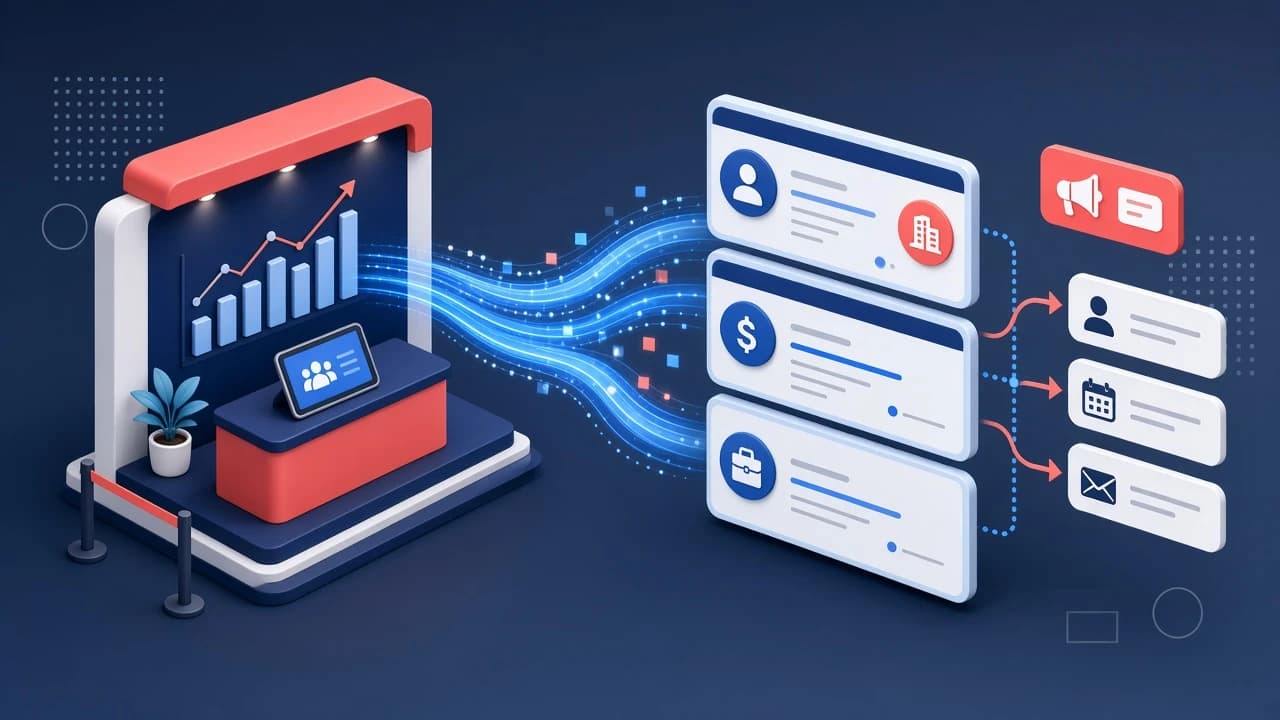
A good Salesforce conference lead sync gets every badge scan and booth conversation into your CRM the same day, tagged to the right campaign, with no duplicates and a lead source you can trust in a quarterly report. Most teams lose that window. Leads sit in a scanner export or a shared spreadsheet until Wednesday, someone imports them with half the fields blank, and by then the reps who had the conversations have moved on.
This guide covers the Salesforce side of the setup: campaigns, field mapping, dedupe, and attribution. If your team runs HubSpot instead, read our guide to syncing conference leads to HubSpot.
Why same-day sync matters
Leads from a show cool off fast. The person you talked to on the floor is also talking to six other vendors, and the one who follows up first while the conversation is fresh has the edge. That only works if the lead is in Salesforce, assigned to a rep, with notes attached, before the booth team is back at the hotel.
Same-day sync also protects your reporting. Every lead that gets imported late is a lead that can skip campaign tagging, land with the wrong lead source, or create a duplicate of an existing contact. Those small errors are why so many teams struggle to show what an event actually produced.
Step 1: Build the Salesforce campaign before the show
Create the campaign at least a week before the event so everything you capture has somewhere to land.
- Name it consistently. Use a pattern like
2026-11 | Event Name | Booth. When you run a dinner or a sponsored session at the same show, give each its own child campaign under one parent. - Set campaign member statuses. The defaults (Sent, Responded) do not fit events. Use something like Registered, Meeting Booked, Visited Booth, Attended Meeting, and No Show, and mark which ones count as Responded.
- Fill in budgeted and actual cost. You will want this later when someone asks what the show returned.
- Load pre-booked meetings. Anyone you scheduled ahead of time goes in as a member with Meeting Booked, so you can see who actually showed up.
Step 2: Map fields before anyone scans a badge
Badge data is messy and every lead retrieval vendor exports it differently. Decide your mapping up front and test it with five sample records.
| Captured at the booth | Salesforce field | Notes |
|---|---|---|
| Name, email, company, title | Standard Lead fields | Normalize email to lowercase before matching |
| Event name | Campaign (via campaign member) | Never a free-text field alone |
| Lead tier (A/B/C) | Custom picklist | Drives routing and response targets |
| Conversation notes | Long text area or a logged activity | Keep the rep's words, not a summary |
| Captured by | Custom lookup to User | Who actually had the conversation |
| Capture date | Custom date field | Separate from created date for late imports |
Keep the booth form short. Every extra required field is one more reason a rep skips logging a conversation when the booth is busy. Tier, notes, and next step cover most of what follow-up needs. Our booth qualification scripts show how to get those answers in a short conversation.
Step 3: Decide your dedupe rules
Conference lists overlap heavily with what is already in your org. Without rules, you end up with a new Lead for someone who is already a Contact on an open opportunity, and the account owner never hears about it.
- Match on email first, then fall back to first name, last name, and company domain.
- Check Contacts as well as Leads. If the person exists as a Contact, add them to the campaign and log the conversation as an activity rather than creating a Lead.
- Respect existing owners. If the account already has an owner, route the update to them, even if a different rep scanned the badge.
- Turn on Salesforce matching and duplicate rules so imports and API inserts get flagged, and decide whether duplicates are blocked or allowed with an alert.
Step 4: Get lead source attribution right
Lead Source is a single picklist and it gets overwritten easily. Treat it carefully.
- Set Lead Source to a stable value such as
Conferenceand keep the specific show in the campaign, not in the picklist. A picklist with 40 event names is impossible to report on. - Only set Lead Source on new records. For existing Leads and Contacts, the campaign membership records the touch without rewriting the original source.
- Set the Primary Campaign Source on opportunities created from event conversations so campaign influence reports pick them up.
- Agree with marketing ops on one attribution model before the show, so nobody argues about it in the QBR.
Once the data is clean, measuring the return becomes a reporting exercise. Our conference ROI tracking guide covers the formulas, and the free conference ROI calculator gives you a quick estimate.
Step 5: Pick how leads get into Salesforce
There are three common routes, from slowest to fastest:
- Manual CSV import after the show. Works, but it is the reason leads land days late. If you go this way, have one owner run the import the night of each show day using the Data Import Wizard with your saved mapping.
- Lead retrieval vendor integration. Many badge scanning apps push to Salesforce directly. Check whether they support campaign assignment and custom fields, not just standard Lead fields.
- A connected capture tool. Conference Hero lists Salesforce among its integrations, so leads and notes captured in the app can flow to your CRM instead of waiting on a spreadsheet. Check the integrations page for current setup details.
Step 6: Route and alert on day one
Sync is only useful if someone acts on it. Use assignment rules or Flow to route A-tier leads to the named account owner or a dedicated event rep, and send an alert in Slack or email when a new A-tier lead arrives. B and C tiers can go into a queue that SDRs work through over the next few days.
For response targets by tier and who owns each lead in the first 48 hours, see our conference lead response SLA playbook.
A quick pre-show checklist
- Campaign and child campaigns created with event member statuses
- Field mapping tested with sample records
- Duplicate rules active and tested against existing Contacts
- Lead Source and Primary Campaign Source rules agreed
- Routing and alerts tested with a fake A-tier lead
- One person named to own sync each evening of the show
For the rest of your prep, use the free conference checklist, and browse the other free Conference Hero tools for follow-up and planning.